We spark change by bringing the right configuration of industry in sights, most advanced software to unlock new value that fits your specific requirements.
We spark change by bringing the right configuration of industry in sights, most advanced software to unlock new value that fits your specific requirements.
We spark change by bringing the right configuration of industry in sights, most advanced software to unlock new value that fits your specific requirements.Explore Mobile Application
We spark change by bringing the right configuration of industry in sights, most advanced software to unlock new value that fits your specific requirements.
Shopify Speed Optimization: How to Make Your Store Faster
4 min read 24th October, 2026
A slow Shopify store can frustrate shoppers, interrupt the buying journey, and make it harder for customers to browse products smoothly. Even when your products and marketing are strong, a sluggish storefront can create unnecessary friction between a customer landing on your website and completing a purchase.
Shopify speed optimization focuses on improving how quickly your store loads, how smoothly customers interact with it, and how stable the page remains while content appears. The most effective improvements often come from optimizing images, reviewing installed apps, reducing unnecessary JavaScript, refining theme code, and fixing Core Web Vitals issues.
Shopify already manages much of the underlying hosting infrastructure, so improving performance usually starts with the parts of your storefront you can control.
This guide covers practical ways to improve Shopify store speed, from testing performance and optimizing images to fixing theme, app, and Core Web Vitals issues.
Key Takeaways
Test your homepage, product pages, collection pages, and important landing pages before making changes.
Optimize images and prioritize the main visible image to improve loading performance.
Audit Shopify apps, tracking scripts, and theme code to reduce unnecessary browser work.
Monitor Core Web Vitals, including Largest Contentful Paint (LCP), Interaction to Next Paint (INP), and Cumulative Layout Shift (CLS).
Measure performance after each significant change instead of relying on a single speed score.
Why Shopify Store Speed Matters
Store speed influences how customers experience your website. When product images appear late, menus respond slowly, or page elements move unexpectedly, shoppers may find it harder to compare products and complete their purchase.
Performance also matters for search visibility. Google recommends good Core Web Vitals as part of providing a strong page experience, although passing these metrics does not guarantee higher rankings.
A well-optimized Shopify store supports three important areas.
1. Better Shopping Experience
Customers should be able to open product pages, select variants, browse collections, and add products to their cart without unnecessary delays. A responsive storefront makes these interactions feel more predictable.
2. Stronger Mobile Experience
Mobile visitors often browse with varying network conditions and device capabilities. Large images, heavy JavaScript, and poorly optimized page layouts can make the experience particularly frustrating on mobile.
3. More Reliable Performance for Marketing Traffic
Paid campaigns, email promotions, and organic search can bring visitors directly to product and landing pages. Those pages need to load and respond efficiently so customers can explore the offer without unnecessary friction.
The goal is not simply to achieve a perfect score in a testing tool. It is to improve the real experience customers have when using your store.
How to Test Your Shopify Store Speed
Before changing your theme or uninstalling apps, establish a performance baseline. Testing first helps you identify the actual problem instead of making changes based on assumptions.
Use Google PageSpeed Insights
Google PageSpeed Insights provides performance diagnostics for mobile and desktop experiences. It combines field data, when available, with lab testing that can help identify potential issues.
Do not assume that a fast homepage means your entire store is fast. Product pages may load review widgets, variant selectors, recommendation tools, and additional scripts that are not present on the homepage.
Review Shopify Web Performance Reports
Shopify provides built-in web performance reports that help merchants understand Core Web Vitals across mobile and desktop experiences. These reports can also help you identify changes associated with app installations, theme updates, and new code.
Keep in mind that Shopify's performance data can be delayed by up to 36 hours. Use it to monitor real-world trends rather than as an immediate test after every code change.
Understand the Metrics
Metric
What it measures
Good target
Largest Contentful Paint (LCP)
How quickly the main visible content loads
2.5 seconds or less
Interaction to Next Paint (INP)
How quickly the page responds to user interactions
200 milliseconds or less
Cumulative Layout Shift (CLS)
How much the page layout unexpectedly moves
0.1 or less
These are Google's recommended thresholds for good Core Web Vitals, evaluated at the 75th percentile of page visits and considered separately for mobile and desktop.
Several elements can contribute to poor Shopify website speed. Identifying the main bottleneck helps you prioritize changes that are more likely to make a meaningful difference.
Common issue
Why it matters
Recommended action
Oversized images
Increases download size and can delay the main visible content
Resize images and use responsive image output
Too many apps
Apps may add JavaScript, CSS, widgets, and external requests
Audit apps and remove unnecessary functionality
Heavy theme features
Sliders, animations, and unused sections add work
Simplify templates and disable unnecessary features
Excessive JavaScript
Can delay rendering and user interactions
Remove unused scripts and defer non-critical code
Unoptimized fonts
Adds requests and may cause text to shift
Reduce font families and weights
Dynamic widgets
Can move content after the page loads
Reserve space for reviews, banners, and recommendations
Complex Liquid code
Can increase server-side rendering work
Review expensive loops and unnecessary template logic
Shopify's own performance guidance identifies themes, apps, third-party code, analytics, and media as important areas to review.
How to Speed Up Your Shopify Store: 10 Practical Steps
1. Choose and Maintain a Lightweight Shopify Theme
Your theme affects how pages are rendered and which styles, scripts, sections, and interactive features are loaded.
A feature-rich theme is not automatically a poor choice. However, unnecessary animations, oversized sliders, and multiple features that serve the same purpose can add avoidable complexity.
To improve Shopify theme performance:
Keep your theme updated, after testing updates in a duplicate theme.
Remove sections that do not serve a clear customer or business purpose.
Avoid loading large scripts globally when only one template needs them.
Test product and collection templates using realistic store content.
Review how the theme handles product galleries, filters, navigation, and variant selectors.
Shopify's free themes, including its Online Store 2.0 themes and Horizon theme family, are designed with performance in mind. Other themes may also perform well, so evaluate the actual implementation rather than choosing a theme based on its name alone.
If your current theme is causing persistent performance problems, compare the effort required to optimize it with the cost of switching themes.
If you're planning to migrate to a new ecommerce platform or rebuild your storefront, performance should be part of the planning process from the beginning. Review our Ecommerce Website Migration Best Practices to understand how to plan a smoother migration and avoid common issues.
2. Remove Unused Shopify Apps and Leftover Code
Shopify apps add useful features such as reviews, subscriptions, loyalty programs, customer support, and marketing automation. However, some apps also introduce storefront scripts, stylesheets, fonts, widgets, and external network requests.
The goal is not to remove every app. It is to understand which apps are necessary and how they affect performance.
Create an app audit with the following questions:
Is the app actively used?
Does it support sales, operations, customer experience, or compliance?
Does it load code on every page?
Does it duplicate another app's functionality?
Can its scripts be restricted to the templates that need them?
Does it leave code behind when uninstalled?
Pay particular attention to review widgets, popups, chat tools, recommendation engines, and marketing scripts.
Important: Uninstalling an app does not always remove every code reference it added to your theme. Review the relevant theme files and app embed settings, and consult the app developer when necessary.
Before removing code, duplicate your theme and test the change. Do not delete unfamiliar snippets from your live store without understanding what they do.
3. Optimize Shopify Product Images and Banners
Images are often among the largest resources on an ecommerce page. Product photography, collection banners, promotional graphics, and lifestyle images can all contribute to page weight.
Start with these improvements:
Resize images to suit their actual display dimensions.
Use appropriately compressed image formats.
Serve responsive image sizes for mobile and desktop.
Add descriptive alternative text where appropriate.
Avoid downloading large images that are never displayed at the visitor's viewport size.
Shopify's image CDN already handles important image delivery optimizations. Your theme still needs to request suitable dimensions and use the correct loading strategy.
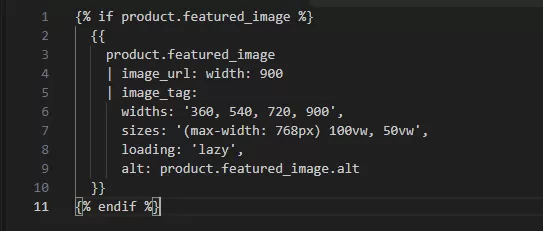
For theme developers, Shopify's image_url and image_tag Liquid filters help generate appropriately sized image output.
Example for a product image displayed below the initial viewport:
This example uses lazy loading for an image assumed to appear below the initial viewport. If the same image is the main visible image when the page opens, use a different loading strategy.
See Shopify's official documentation for image_url and image_tag before modifying your theme.
4. Prioritize the Main Visible Image and Improve LCP
Largest Contentful Paint measures how quickly the largest visible content element appears. On Shopify product pages, this is often the main product image; on other pages, it may be a hero image or a large heading.
First, use a performance test to identify the actual LCP element. Then check whether the browser can discover and load it early.
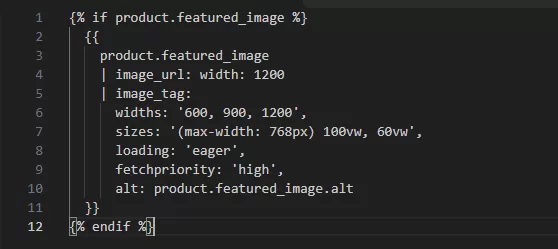
For an image that is confirmed to be the LCP element, a pattern like this may be appropriate:
Use this only where the product image is genuinely the main above-the-fold image. Do not add high fetch priority to every image or copy this example into templates without checking the actual layout.
Also review whether the main image is hidden behind a carousel, fade-in animation, or JavaScript-generated content. These can delay the point at which the browser can display the main content.
5. Use Lazy Loading Correctly
Lazy loading allows images and other resources to load when they are closer to becoming visible. It can be useful for long product pages, collection grids, and editorial content.
However, applying lazy loading to every image can make the initial page experience worse.
Use lazy loading for appropriate below-the-fold content, such as:
Secondary product gallery images
Images lower on long collection pages
Editorial images farther down a blog post
Supporting media that is not immediately visible
Avoid lazy loading the LCP image or other important images in the initial viewport. Those assets should generally be discoverable and load promptly.
After implementing lazy loading, test both mobile and desktop layouts to ensure images appear when expected and the page does not shift unexpectedly.
6. Reduce Unnecessary JavaScript
JavaScript can affect both loading speed and how quickly a page responds to clicks and taps.
A Shopify storefront may accumulate scripts from its theme, review apps, analytics platforms, chat widgets, popups, personalization tools, and advertising pixels. Even if each script appears small, the combined execution cost can become significant.
Shopify automation can simplify repetitive store operations, but every additional app or integration should serve a clear purpose. Review your existing workflows to identify redundant tools and unnecessary scripts. For more ideas, explore our Shopify Automation Guide.
Review your theme and apps for opportunities to:
Remove unused JavaScript and obsolete integrations.
Load scripts only on the templates where they are required.
Use defer for appropriate non-critical scripts.
Avoid heavy JavaScript libraries for functionality that can be handled with HTML or CSS.
Delay optional widgets until they are needed, where technically appropriate.
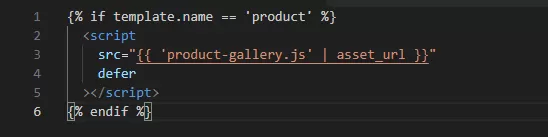
For example, a custom product gallery script might be needed on product pages but not on blog pages. Conditional loading can prevent unnecessary downloads on other templates.
This is a simplified example. Before implementing it, confirm that the script is not already loaded elsewhere and that all dependent functionality continues to work.
Do not blindly delay scripts responsible for variant selection, add-to-cart functionality, pricing, consent handling, or other critical shopping interactions.
7. Optimize CSS, Fonts, and Icons
CSS determines how your store is presented, but excessive stylesheets and unnecessary visual effects can increase rendering work.
Review the theme for unused styles, duplicated CSS, unnecessary animations, and assets that load across every page despite being required by only one template.
Fonts can also affect performance. Too many font families and weights increase the number of resources the browser needs to retrieve. Late font loading can cause text to change size or shift position.
Consider these improvements:
Use a limited set of font families and weights.
Remove icon font libraries when only a few icons are required.
Use suitable SVG icons where practical.
Avoid expensive animations on important above-the-fold content.
Load only the styles and scripts needed for each template where feasible.
Shopify already performs some CSS and JavaScript minification and other platform-level optimizations. Focus on unnecessary code and rendering behavior rather than duplicating optimizations the platform already provides.
8. Prevent Unexpected Layout Shifts
Cumulative Layout Shift measures unexpected movement of visible page content. A page may appear to load quickly but still feel frustrating if buttons, images, or text move while a visitor is trying to interact with it.
Common causes include:
Images without reserved dimensions
Review widgets that appear after the initial render
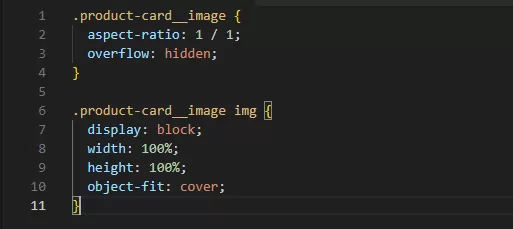
Use image dimensions or appropriate aspect ratios to reserve space before media loads.
For example:
Adjust this example to match your actual product image proportions. Not every product image should be forced into a square container.
For dynamic widgets, reserve enough space for the expected content or render the component in a way that avoids moving existing content.
9. Review Third-Party Scripts and Tracking Tags
Third-party tools help with analytics, advertising, customer support, reviews, and marketing automation. However, they can also add network requests and JavaScript execution time.
Start by auditing your Google Tag Manager container and other manually installed scripts.
Check for:
Duplicate analytics or advertising tags
Pixels from campaigns that have ended
Widgets that are no longer used
Scripts loaded on pages where they provide no value
Marketing tags that execute before they are necessary
Tools that duplicate functionality already provided elsewhere
Do not remove a script simply because it appears in a performance report. Confirm its business purpose, consent requirements, and effect on analytics or store functionality first.
After changing tracking, verify that important events still fire correctly and that consent settings remain respected.
10. Simplify Collection Pages and Review Liquid Code
Collection pages can become heavy when they display too many products, complex filters, badges, recommendation blocks, and additional promotional sections.
Consider enabling pagination where appropriate and reducing the number of elements rendered simultaneously. Keep navigation and filtering useful for shoppers, but avoid unnecessary interface elements.
For custom themes, review Liquid code for inefficient nested loops and repeated work, especially on frequently visited templates.
For example, avoid iterating through an entire catalog when a page only needs to display the products in the current collection. Use the relevant collection data and pagination patterns supported by Shopify.
Shopify's theme performance best practices provide additional guidance on Liquid rendering, image loading, scripts, and stylesheets.
How to Improve Shopify Core Web Vitals
Core Web Vitals help you evaluate three aspects of the visitor experience: loading, responsiveness, and visual stability.
Largest Contentful Paint (LCP)
Target: 2.5 seconds or less.
To improve LCP:
Identify the actual LCP element.
Optimize its image dimensions and loading priority.
Avoid lazy loading the main visible image.
Reduce resources that delay rendering.
Ensure important content is available in the initial HTML where practical.
Interaction to Next Paint (INP)
Target: 200 milliseconds or less.
To improve responsiveness:
Audit long-running JavaScript.
Remove unnecessary scripts and duplicated app functionality.
Reduce expensive event handlers.
Keep product selectors, menus, and cart interactions responsive.
Test interactive elements on mobile devices.
Cumulative Layout Shift (CLS)
Target: 0.1 or less.
To improve layout stability:
Reserve space for images and media.
Prevent banners and widgets from pushing existing content around.
Review font loading behavior.
Check review and recommendation widgets.
Test the page while content loads, not just after it finishes.
A good score in one metric does not guarantee that the others are healthy. Measure each metric and address the issues that affect your customers most.
Shopify Speed Optimization Checklist
Use this checklist before and after a performance improvement project.
Measurement
Theme and apps
Images and rendering
Testing and monitoring
Common Shopify Speed Optimization Mistakes
Chasing a Perfect Speed Score
A testing score is useful, but it does not tell the whole story. Focus on the underlying issues and real-user performance instead of making unnecessary changes just to increase a score.
Installing Another App to Fix App Bloat
An optimization app may help with a specific problem, but adding another tool without understanding the existing bottleneck can increase complexity. Audit the current setup first.
Lazy Loading Every Image
Lazy loading can improve below-the-fold performance, but delaying the main visible image can hurt LCP. Choose the loading strategy based on the element's position and role.
Replacing the Theme Before Auditing It
A theme replacement may help when the existing theme is a major bottleneck. However, the same third-party scripts and unnecessary apps may continue affecting performance after a redesign.
Making Changes Directly on the Live Theme
Unverified changes can break product galleries, navigation, tracking, or cart functionality. Work in a duplicate theme and test the customer journey before publishing.
Ignoring Performance After Launch
New apps, campaign tags, banners, and theme updates can introduce new performance issues. Make performance checks part of your ongoing store maintenance process.
When Should You Hire a Shopify Speed Optimization Expert?
Some performance improvements are straightforward, such as resizing images or removing an unused app. Others require technical investigation into Liquid templates, JavaScript execution, theme architecture, or conflicts between apps.
Consider professional help when:
Important product or collection pages consistently have poor performance metrics.
Theme customizations have introduced complex rendering issues.
Apps conflict with one another or leave behind code.
Your store has persistent LCP, INP, or CLS problems.
Speed changes risk affecting product selection, cart functionality, or analytics.
You need a structured performance audit and ongoing monitoring.
Web Panel Solutions helps businesses with ecommerce development and storefront improvements. If your Shopify store needs a deeper technical review, explore our Shopify Store Development services.
The right approach is to identify the actual bottlenecks, prioritize fixes, test them safely, and measure the outcome.
Conclusion
Shopify speed optimization is an ongoing process rather than a one-time task. The most effective approach starts with accurate measurement and focuses on the areas that affect your store's actual performance.
Optimize the main visible images, review apps and tracking scripts, simplify unnecessary theme features, improve JavaScript behavior, and address Core Web Vitals issues. Test changes carefully and monitor the results over time.
A faster, more stable storefront can make shopping easier for customers and provide a stronger foundation for your ecommerce growth.
If your Shopify store continues to experience performance issues, explore ecommerce development services to discuss a structured approach to improving your storefront.
Start by testing important pages, optimizing images, auditing apps and scripts, simplifying unnecessary theme features, and checking Core Web Vitals. Prioritize fixes based on the problems identified in your performance reports.
Common causes include oversized images, heavy JavaScript, unnecessary app scripts, complex page layouts, and third-party widgets. Mobile devices can be more affected by limited processing power and variable network conditions, so test mobile performance separately.
Some apps affect performance by adding scripts, stylesheets, widgets, and external requests. The impact varies by app and implementation. Audit apps based on their actual performance cost and business value rather than assuming every app is equally harmful.
Page experience and Core Web Vitals are relevant to Google's ranking systems, but they are not the only ranking factors. Improving speed can support usability and search performance, but it does not guarantee better rankings.
Yes. Depending on the bottleneck, you may be able to improve performance by optimizing images, reviewing apps, removing unused scripts, simplifying page sections, and fixing layout shifts. A theme replacement is not always necessary.
There is no single score that guarantees a successful store. Use testing tools to identify issues and monitor LCP, INP, and CLS. Real-user data and the performance of important shopping pages are more useful than chasing an arbitrary perfect score.
Shopify manages its hosting infrastructure and provides services such as CDN delivery, caching, and file optimization. Merchants should focus first on storefront-level issues such as theme code, apps, images, and third-party scripts rather than attempting to configure a separate CDN without a specific need.
Establish a baseline before making changes, test after significant theme or app updates, and review performance periodically. Stores with frequent campaigns or development changes may benefit from more regular checks.
About the Author
Bablu Kumar
Digital Marketing
A passionate digital marketing and SEO professional delivering premium insights on online growth, brand visibility, search optimization, and result-driven digital strategies. Focused on helping businesses strengthen their online presence through innovative marketing solutions and performance-focused approaches.