Launching an online store is one of the most effective ways to grow a business and reach customers beyond your local market. However, many beginners feel overwhelmed when it comes to setting up an ecommerce website.
The good news is that WooCommerce makes the process much easier. Built specifically for WordPress, WooCommerce allows you to create a fully functional online store without building everything from scratch.
Whether you're selling physical products, digital downloads, subscriptions, or services, WooCommerce provides the tools needed to manage products, process payments, and handle customer orders.
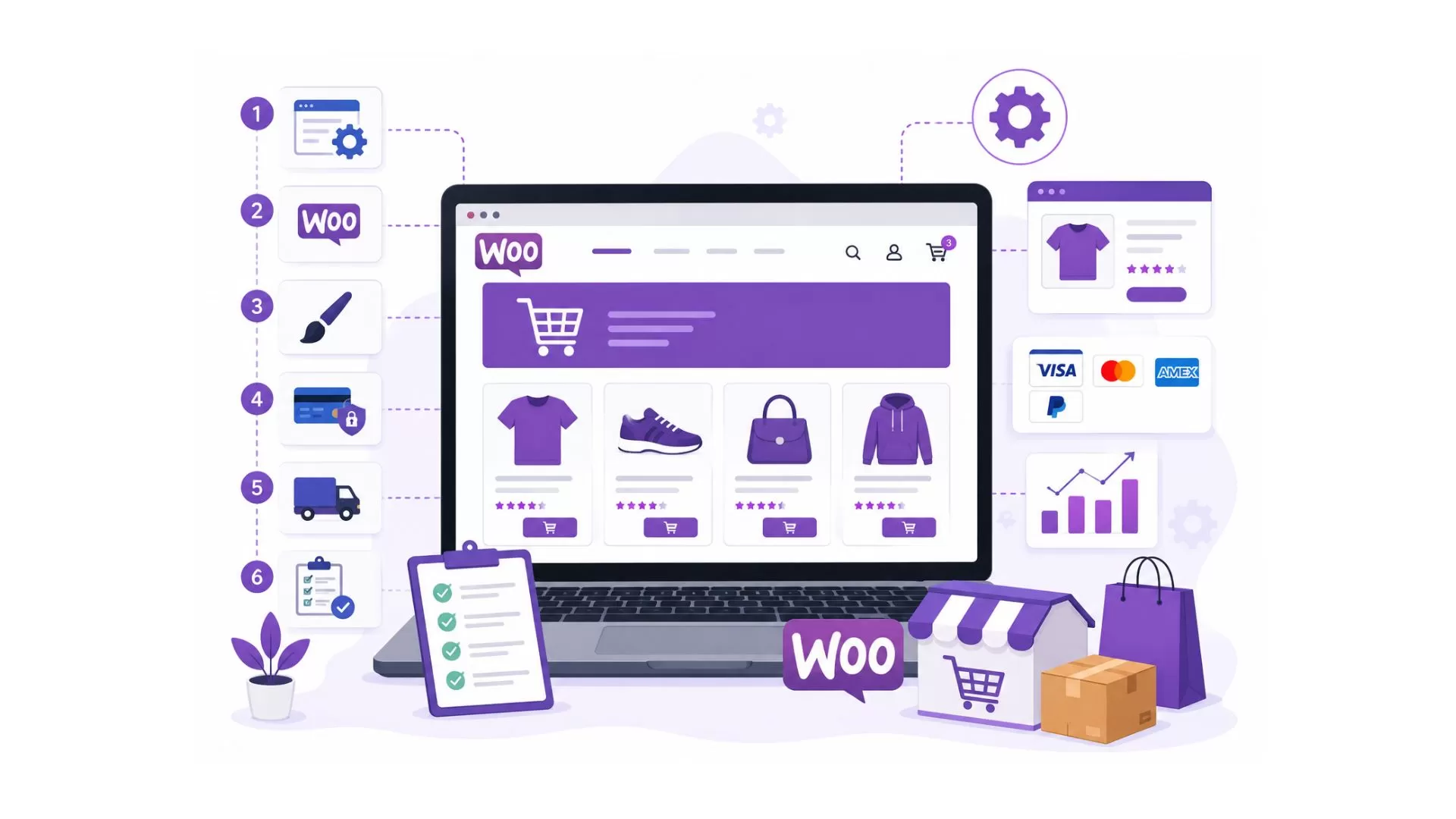
This step-by-step WooCommerce store setup guide will walk you through everything you need to know to launch your first online store successfully.
Key Takeaways
- WooCommerce is a flexible ecommerce solution built for WordPress.
- Setting up a WooCommerce store involves configuring products, payments, shipping, taxes, and store settings.
- Choosing reliable hosting and a responsive theme is essential for performance.
- Proper setup helps improve customer experience, security, and conversions.
- Beginners can launch a WooCommerce store without advanced coding knowledge.
If you're new to ecommerce, it's helpful to first understand what WooCommerce is and how it works before starting the setup process.
What You Need Before Setting Up WooCommerce
Before installing WooCommerce, it's important to have a few essentials in place.
Domain Name
Your domain name is your store's online address. It should be easy to remember, relevant to your brand, and simple to type.
Web Hosting
Because WooCommerce runs on WordPress, you'll need a hosting provider that can support ecommerce functionality.
When selecting hosting, consider:
- Website speed
- Security features
- Scalability
- Customer support
- WooCommerce compatibility
Choosing quality hosting from the beginning can help prevent performance issues later.
WordPress Installation
WooCommerce works exclusively with WordPress, so your website must have WordPress installed before proceeding.
Most hosting providers offer one-click WordPress installation.
SSL Certificate
An SSL certificate encrypts customer data and secures online transactions.
Most modern hosting providers include SSL certificates as part of their hosting plans.
Step 1: Install WooCommerce
After setting up WordPress, the next step is installing WooCommerce.
How to Install WooCommerce
- Log in to your WordPress dashboard.
- Navigate to Plugins > Add New.
- Search for WooCommerce.
- Click Install.
- Activate the plugin.
Once activated, WooCommerce launches its setup wizard.
The setup wizard simplifies the initial configuration process and helps you configure essential store settings.
Step 2: Configure Store Details
The WooCommerce setup wizard will ask for basic business information.
Store Address
Add your business location and contact information.
Currency Settings
Select the currency you want to use for transactions.
Examples include:
Selling Locations
Choose where you plan to sell your products.
Options typically include:
- Specific countries
- Regional markets
- Worldwide sales
Configuring these settings correctly ensures smoother operations later.
Step 3: Set Up Payment Methods
A store cannot generate revenue without payment processing.
WooCommerce supports various payment gateways that allow customers to pay securely.
PayPal
PayPal remains one of the most widely recognized payment methods globally.
Stripe
Stripe allows businesses to accept credit cards, debit cards, and digital payments directly on their websites.
Credit and Debit Cards
Many WooCommerce payment solutions support direct card payments.
Local Payment Providers
Depending on your target market, local payment options may improve conversion rates.
When selecting payment methods, focus on customer convenience, transaction fees, and regional preferences.
Step 4: Configure Shipping Settings
Shipping setup plays a major role in customer satisfaction.
WooCommerce allows businesses to create customized shipping rules.
Shipping Zones
Shipping zones define geographic areas where specific shipping methods apply.
Flat Rate Shipping
A fixed shipping cost for all orders.
Free Shipping
Many businesses offer free shipping after customers reach a minimum order value.
Local Pickup
Ideal for businesses that allow customers to collect products from a physical location.
Clear shipping policies help reduce cart abandonment and improve customer trust.
Step 5: Set Up Taxes
Tax configuration depends on your business location and selling regions.
WooCommerce allows you to:
- Calculate taxes automatically
- Add custom tax rates
- Configure region-specific tax settings
Always verify tax requirements based on local regulations before launching your store.
Step 6: Add Products to Your Store
Products are the foundation of every ecommerce business.
WooCommerce allows you to add various product types, including:
- Physical products
- Digital products
- Variable products
- Subscription products
Product Title
Use clear and descriptive product names.
Product Descriptions
Write detailed descriptions that explain:
- Features
- Benefits
- Specifications
- Usage information
Product Images
High-quality product images help customers understand what they are purchasing.
Pricing
Display accurate pricing and promotional offers when applicable.
Inventory Management
WooCommerce allows you to track stock levels and prevent overselling.
Well-optimized product pages can significantly improve conversion rates.
Step 7: Choose a WooCommerce Theme
Your store's design influences both user experience and sales performance.
WooCommerce supports thousands of themes.
Free Themes
Free themes can be suitable for startups and businesses with limited budgets.
Premium Themes
Premium themes often include:
- Advanced customization
- Better performance
- Dedicated support
- Enhanced ecommerce features
Mobile Optimization
A large percentage of ecommerce traffic comes from mobile devices.
Choose a theme that provides a seamless experience across smartphones, tablets, and desktops.
Step 8: Install Essential WooCommerce Plugins
Plugins extend the functionality of your store.
However, installing too many plugins can negatively impact performance.
Focus on essential tools first.
SEO Plugin
An SEO plugin helps optimize your store for search engines.
Security Plugin
Security plugins help protect customer data and prevent unauthorized access.
Performance Plugin
Performance optimization tools improve loading speed and user experience.
Backup Plugin
Regular backups help protect your website from data loss.
Choosing high-quality plugins can improve both functionality and reliability.
Step 9: Optimize Your Store Before Launch
Before making your store available to customers, perform a complete review.
Test Mobile Responsiveness
Verify that your website works correctly on different devices.
Test Checkout Functionality
Complete several test purchases to ensure the checkout process works smoothly.
Improve Website Speed
Store performance has a direct impact on user experience and sales.
Businesses looking to improve loading times can benefit from implementing WooCommerce speed optimization best practices before launch.
Review Security Settings
Check:
- SSL installation
- User permissions
- Plugin updates
- Security configurations
Launching a store without proper testing can create unnecessary issues for customers.
Need WooCommerce Development Help?
Build a secure, scalable, and conversion-focused WooCommerce store tailored to your business needs.
Explore WooCommerce Development Services
Common WooCommerce Setup Mistakes to Avoid
Even with a straightforward setup process, beginners often make mistakes that affect store performance.
Choosing Poor Hosting
Cheap hosting can lead to slow loading times and poor customer experiences.
Ignoring Security
Failing to secure your website increases the risk of data breaches and customer trust issues.
Installing Too Many Plugins
Excessive plugins can slow down your store and create compatibility issues.
Skipping Mobile Testing
Mobile shoppers expect a seamless browsing experience.
Using Low-Quality Product Images
Poor visuals can reduce trust and negatively impact sales.
Avoiding these mistakes can help create a stronger foundation for long-term growth.
WooCommerce Store Setup Checklist
Before launching your store, ensure you've completed the following:
| Task | Status |
| WordPress Installed | ✓ |
| WooCommerce Installed | ✓ |
| SSL Certificate Active | ✓ |
| Payment Methods Configured | ✓ |
| Shipping Rules Configured | ✓ |
| Tax Settings Verified | ✓ |
| Products Added | ✓ |
| Theme Customized | ✓ |
| Essential Plugins Installed | ✓ |
| Mobile Testing Completed | ✓ |
| Checkout Tested | ✓ |
| Security Settings Reviewed | ✓ |
When Should You Hire WooCommerce Experts?
Many businesses can launch a basic store independently, but some projects require advanced functionality and customization.
You may benefit from professional assistance if you need:
- Custom store development
- Third-party integrations
- Performance optimization
- Store migration
- Advanced ecommerce features
- Conversion-focused design improvements
Businesses looking for long-term scalability often invest in professional WooCommerce development services to ensure their online stores are optimized for growth and performance.
Conclusion
WooCommerce provides a flexible and powerful solution for businesses looking to build an online store with WordPress. By following a structured setup process, you can create a store that delivers a secure, user-friendly, and scalable shopping experience.
From installing WooCommerce and configuring payments to optimizing performance and testing checkout functionality, each step contributes to the success of your ecommerce business. Taking the time to set up your store correctly can help reduce future issues and create a better experience for your customers.
Ready to Launch Your WooCommerce Store?
Get expert support for custom WooCommerce development, integrations, optimization, and long-term growth.
Talk to Our WooCommerce Development Experts